The most useful reason to run AI locally is control. A local model can summarize an internal document, inspect screenshots, or help draft a private plan without uploading that material to a third-party chat history. But privacy comes from the whole workflow—not from the model file alone.
1. Decide what “private” must mean
Start by naming the data you want to protect. It may be customer information, unreleased source code, medical notes, legal drafts, financial records, or simply personal images. Then identify every place that data could leave the computer: model downloads, automatic telemetry, cloud synchronization, external tools, pasted links, and backups.
Local inference addresses one part of that chain: the prompt and response are processed by a model running on your machine. It does not automatically make every plugin, command, folder, or network request safe. Treat the application, its tools, and your operating system as separate boundaries.
2. Check the computer before choosing a model
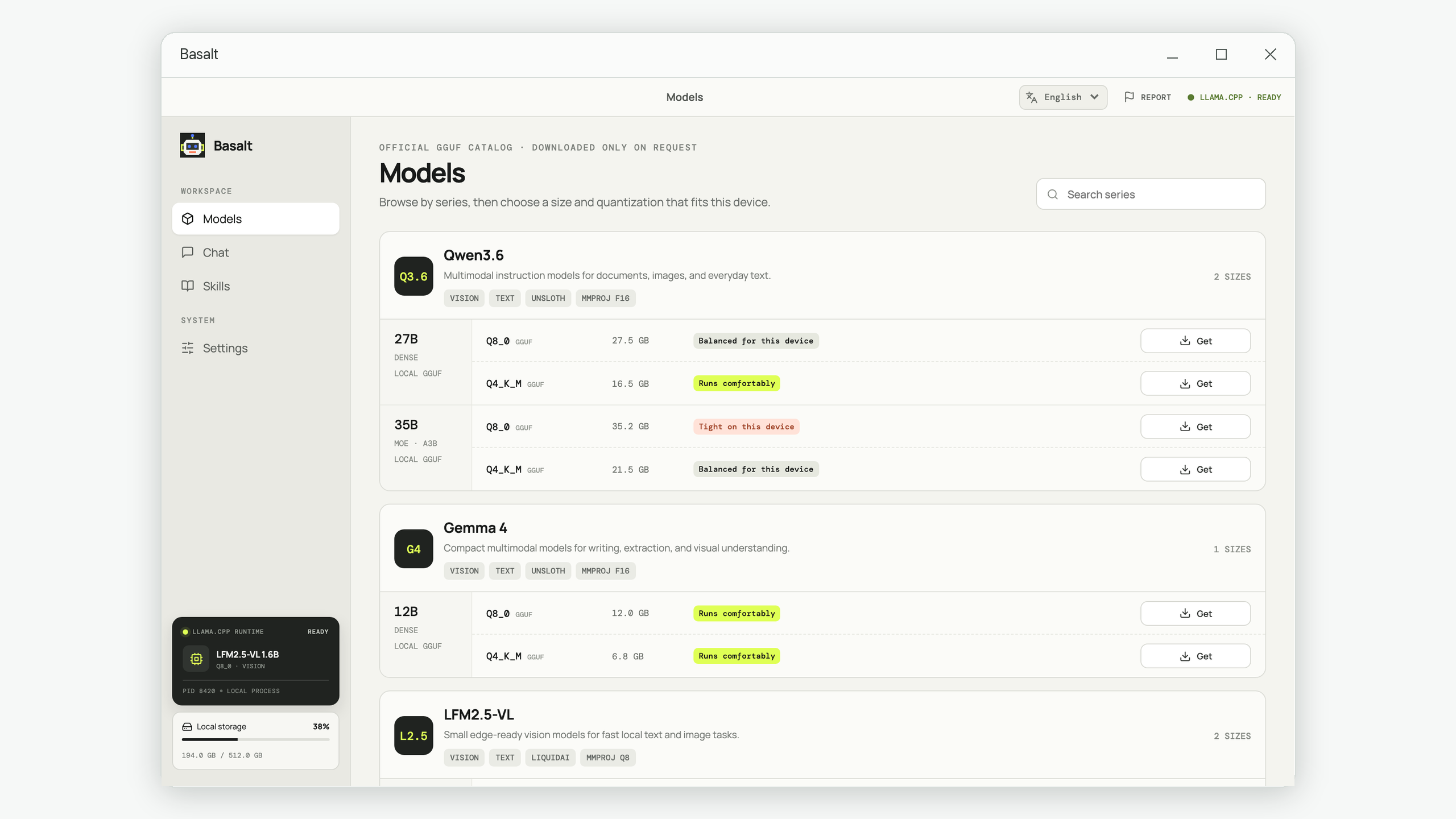
Model names attract attention, but available memory determines what is comfortable. Check installed RAM, free disk space, and whether the PC has a supported GPU with enough dedicated memory. A GPU can make generation much faster, but CPU-only inference is still useful with a smaller or more compressed model.
Do not compare the model download size with free RAM and assume the numbers should match. Running a model also requires working memory for the conversation, temporary calculations, and—when images are involved—a vision projector. Leave several gigabytes of headroom for Windows and other applications.
| Your priority | Start with | Trade-off |
|---|---|---|
| Fast answers on a modest PC | A small Q4 vision or text model | Less depth on difficult tasks |
| General writing and analysis | A medium Q4_K_M model | More memory and a larger download |
| Best quality your machine can sustain | A larger model or Q8_0 build | Slower startup and higher memory use |
3. Choose the model for the task, not the benchmark
Write down two or three real tasks before downloading anything. For example: compare product screenshots, extract action items from meeting notes, or revise a report while preserving terminology. Test candidate models against those tasks with the same prompts.
If you need image understanding, confirm that the model is multimodal and that its matching vision projector is included. A text model cannot interpret an image just because the chat window accepts attachments. For GGUF releases, the projector is normally a separate file and must match the model family.
4. Install once, then verify the local boundary
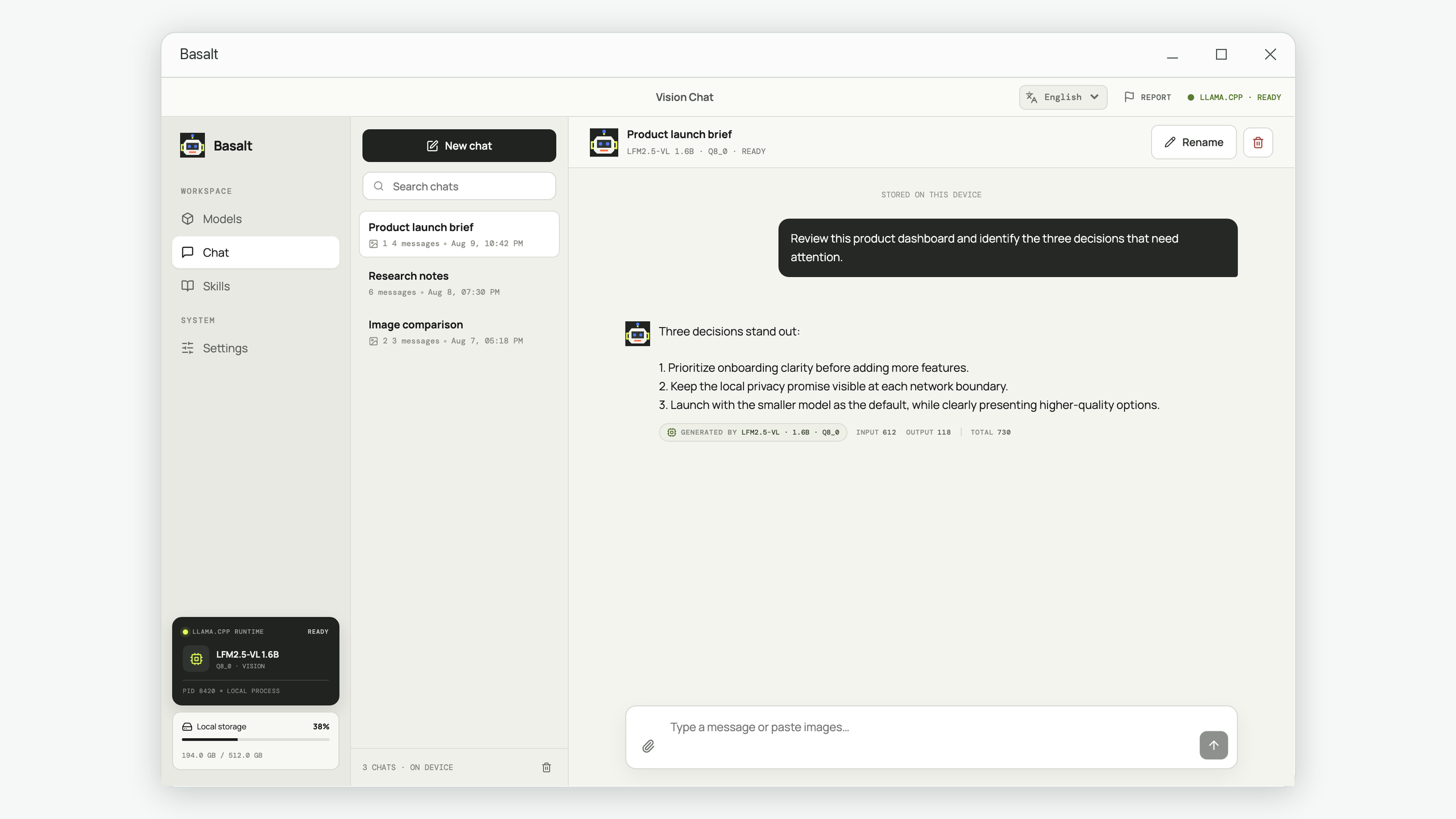
Download the application and model from sources you trust. Keep model files in a dedicated location with enough free space for interrupted downloads. After installation, disconnect the network temporarily and repeat a small test prompt. Reopen the app and confirm that the chat history is still available locally.
On Windows, Resource Monitor or Task Manager can help you observe network and memory activity. A model download obviously uses the network; an ordinary local response should not require it. If you enable a tool that can visit websites or call APIs, that tool creates a new network boundary and should require a deliberate choice.
5. Use a safe routine for sensitive work
- Minimize the input. Include only the pages, images, or code needed for the task. Local storage reduces exposure, but data minimization still limits mistakes.
- State the output format. Ask for a table, checklist, draft, or list of uncertainties. A defined result is easier to review than a confident paragraph.
- Require evidence. For documents, ask for page or section references. For images, ask the model to separate visible facts from interpretations.
- Review tool actions. Reading a known file is different from deleting a directory or sending a request. Keep approval prompts enabled for operations that can change data or use the network.
- Delete deliberately. Know how the app stores chats, uploads, and models, and include those locations in your normal backup and deletion policy.
Private local AI checklist
- The model can answer with the internet disconnected.
- Chat history is stored locally and can be deleted.
- Image support uses a matching local vision projector.
- External tools are disabled or require approval.
- The model fits with memory headroom under a realistic context.
- The active model is visible for every response.
- Your prompts request evidence and make uncertainty acceptable.
Basalt packages these ideas into a Windows workspace: local llama.cpp inference, curated Qwen3.6, Gemma 4, and LFM2.5-VL options, local chat history, multimodal messages, and explicit tool controls. The method above remains valid if you prefer another local runner.
Common privacy questions
Should I block the application in Windows Firewall?
A firewall rule can be a useful extra boundary after required models are downloaded, especially on a workstation reserved for sensitive material. Remember that it will also block deliberate model downloads and any web-enabled tools. Test the offline workflow first, document the rule, and make sure updates do not silently replace it.
Does local storage protect a stolen computer?
No. Local inference prevents routine cloud processing, but files on an unlocked or unencrypted disk can still be read by someone with the device. Use Windows device encryption or BitLocker where appropriate, a strong sign-in method, and a backup policy that protects the same chat and attachment folders.
Try the workflow in Basalt
Start with a model that fits your PC, test it offline, and keep text, images, Skills, and conversation history in one local studio.
Get Basalt for Windows